





How to Vectorize a Logo: Turn Your PNG into a Real Vector File
PNGJPG
In short
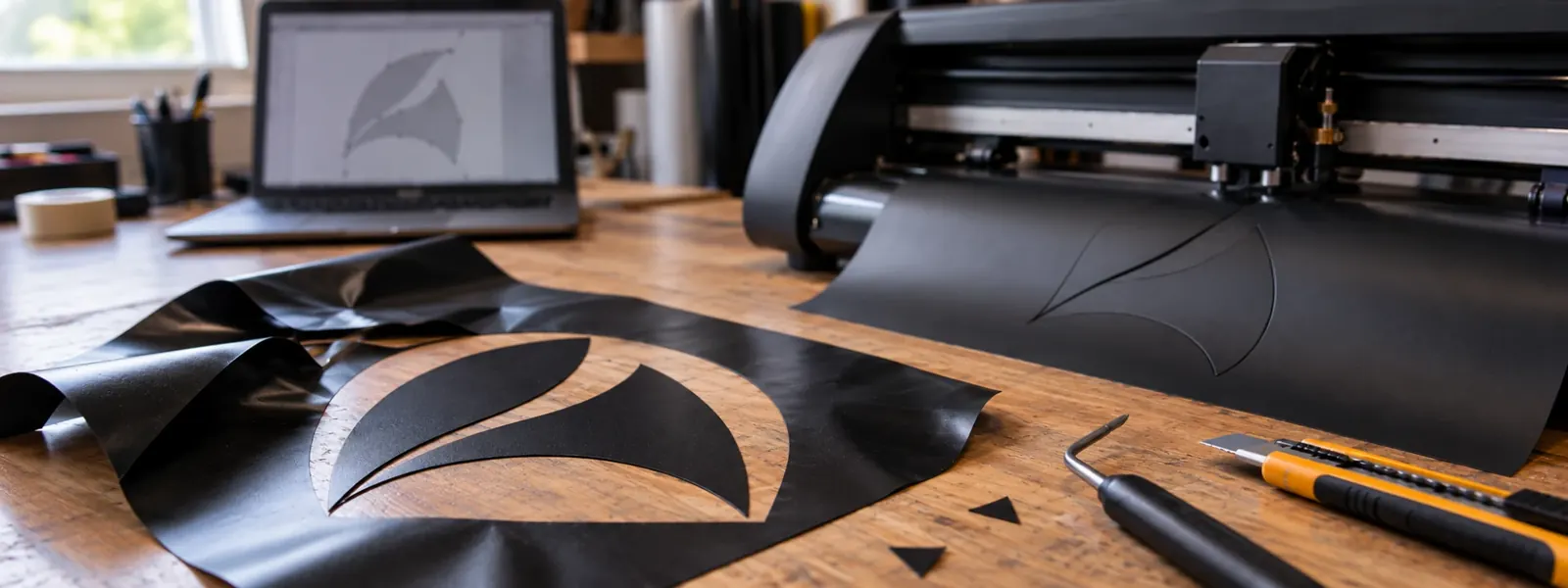
To vectorize a logo, a program traces the outlines of the pixel image, such as Image Trace in Illustrator or Trace Bitmap in the free Inkscape. The catch: Illustrator needs a subscription, Inkscape takes time to learn, and many online services charge for the download.
With our free PNG to SVG converter there’s no subscription, no learning curve, no fee: drop in your logo and get real SVG paths in seconds, in black and white or up to 64 colors. Try it now with your logo.
Vectorize your logo now →Your print shop wants the club logo “as a vector file”, your Cricut only takes SVG, and all you have is a PNG from the website? Then you need to vectorize the logo. You don’t need a designer or expensive software for this. For simple logos with clear colors, a tool does it in seconds. Here are the ways to do it, what they cost and when manual work is needed.
What does “vectorize a logo” mean?
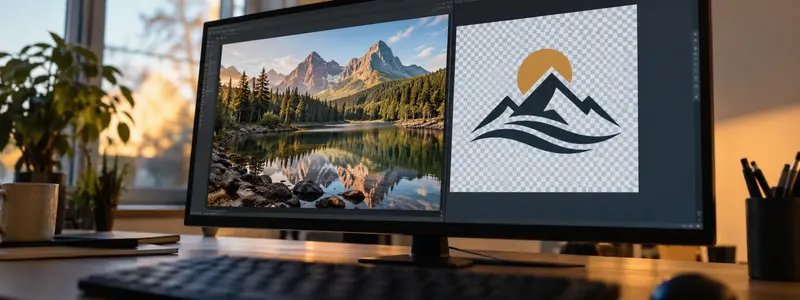
A PNG or JPG is made of pixels. Enlarge it, and it gets blurry and jagged. A vector file stores lines and shapes as formulas instead. It stays sharp at any size, on a business card as well as on a banner. When you vectorize, a program traces the outlines of your logo and turns them into such paths. Common vector formats are SVG, PDF, EPS and AI.
Ask first: If an agency or a designer created the logo, there is almost always an original file. Ask for .ai, .eps, .svg or a PDF. That beats any tracing.
Watch out for fake vectors: Some online converters just wrap your PNG in an SVG shell. The file is called .svg but still contains pixels. Zoom in a lot: if the edges stay smooth, it is a real vector.
Which method is right for you?
| Method | Cost | Effort | Good for |
|---|---|---|---|
| Browser with PNG to SVG | Free | Seconds, nothing to install | Simple logos, lettering, stamps, Cricut and vinyl cutters |
| Inkscape (Windows, Mac, Linux) | Free | Install, learn the basics | Editing afterwards, saving as PDF or EPS |
| Illustrator with Image Trace | Subscription | Learn the basics | Professionals, many fine settings |
| Online services with AI | Often an account or payment for the download | Low | Colorful logos, if uploading is fine with you |
| Designer or vectorizing service | From a small fixed price | Waiting | Gradients, blurry originals, brand logos |
In your browser: vectorize a logo in seconds
This method works the same on a PC, a Mac and a phone. You don’t need an account.
- Open PNG to SVG by Filemanta. It takes PNG, JPG and WebP.
- Drag your logo into the box or tap “Choose images”. Use the largest and sharpest version you have.
- Pick the colors: “B/W” for single-color logos, lettering, stamps and cutting machines. 8 or 16 colors for colorful logos.
- Tap “Convert to SVG” and download the SVG file.
- Open the SVG in your browser and zoom in. The edges must stay smooth.
Your logo is traced in your browser, with no server upload. That is useful for company and client logos that are not public yet. In “B/W” mode the white background is dropped. You get a clean cut line for vinyl, cutting plotters or Cricut, and a clean base for screen printing.
With Inkscape: free on your computer
Inkscape is a free vector program for Windows, Mac and Linux. It is a good fit if you want to edit the result afterwards or save it as PDF or EPS.
- Open your logo via File and Open, and click it to select it.
- Choose Path and Trace Bitmap, or press Shift + Alt + B.
- For single-color logos, use a single scan with brightness cutoff. For colorful logos, use multiple scans by colors. Check the result in the preview.
- Click Apply. The vector version now sits exactly on top of the original.
- Drag it aside, delete the pixel image and save via File and Save As.
With Illustrator: Image Trace
In Adobe Illustrator the feature is called Image Trace. It has the most settings, but it needs a subscription.
- Bring the logo onto the artboard via File and Place, and select it.
- Open Window and Image Trace (or Object and Image Trace).
- Pick a preset, for example “Black and White Logo” or “3 Colors”, and turn on the preview.
- Click Expand. Only then does it turn into real, editable paths.
- Delete the background and save as AI, EPS, PDF or SVG.
Photoshop and Canva: Photoshop works with pixels and has no automatic tracing. Canva offers an AI tool for vectorizing, but you have to upload the logo to your Canva account.
When is automatic vectorizing not enough?
Automatic tracing works well for logos with clear shapes and few colors. With these originals, every tool hits its limits, Illustrator included:
- Gradients, shadows and 3D effects turn into lots of small color steps.
- Photos in the logo produce huge files that look more like a poster.
- Small or blurry originals, such as a screenshot or an image from a messaging app, have too few pixels for clean edges.
- Fine lettering loses its corners and looks soft.
Then manual work helps: a designer redraws the logo with the pen tool and resets the lettering in the original font. For a logo you will use for years on signs, embroidered shirts, screen-printed merch and vehicles, that is worth it.
What format does the print shop want?
- PDF or EPS: standard at most print shops and sign makers.
- SVG: for vinyl cutters, Cricut, laser engraving and websites.
- AI: if an agency keeps working on the logo.
In Inkscape you can turn an SVG into PDF or EPS via File and Save As. If you need your logo the other way round, as a sharp image for Word, presentations or social media, use SVG to PNG at the size you need. When to save an image as PNG and when as JPG is explained in JPG vs PNG: Which Format Should You Use When?.
A quick check before you hand it over
- Do the edges stay smooth when you zoom in?
- Are the colors right, and is the background gone where it should be?
- Is the lettering readable, even at a small size?
- Did the print shop get the format it asked for?
FAQ
What does it mean to vectorize a logo?
A logo saved as PNG or JPG is made of pixels and gets blurry when you enlarge it. Vectorizing traces its outlines as lines and shapes. The vector file (SVG, PDF, EPS or AI) stays sharp at any size, from a business card to a storefront sign.
Can I vectorize a logo for free?
Yes. Inkscape is free and has Trace Bitmap (Shift + Alt + B). Without installing anything, you can use PNG to SVG by Filemanta in your browser, also free, with no account and no watermark. For simple logos with clear colors, either one is enough.
How can I tell if my logo is already a vector?
If the file ends in .svg, .ai, .eps or .pdf, it is often a vector, but not always. Zoom in a lot: if the edges stay smooth, it is a vector. If they turn jagged, the file only contains a pixel image.
What file format does a print shop want for a logo?
Usually PDF or EPS. For vinyl cutters, Cricut and laser engraving it is often SVG, and agencies like AI. If in doubt, ask. In Inkscape you can save an SVG as PDF or EPS via File and Save As.
Why does my vectorized logo look messy?
Usually the original is too small, blurry, or has gradients and shadows. Use the largest version you can find, pick fewer colors and crop off distracting edges first. Fine lettering is best reset in the original font.
The key points
- Vectorizing means a program traces the outlines of your pixel logo as paths.
- First ask the designer for the original file (.ai, .eps, .svg or PDF).
- In your browser it takes seconds with PNG to SVG, free and with no server upload.
- Free on your computer: Inkscape with Trace Bitmap. With a subscription: Illustrator with Image Trace.
- Gradients, photos and fine lettering need manual work, so have them redrawn.
- Print shops usually want PDF or EPS, vinyl cutters and Cricut often SVG.
Read next
JPG vs PNG: Which Format Should You Use When?
4 min read
How to Turn a JPEG into a PDF on Mac and Windows, Without Software
5 min readMatching tools
Try it now – 100% free, no server upload, right in your browser.PNG to SVG →