





How to Convert a Screenshot to PDF on Your Phone and Computer
PDFPNG
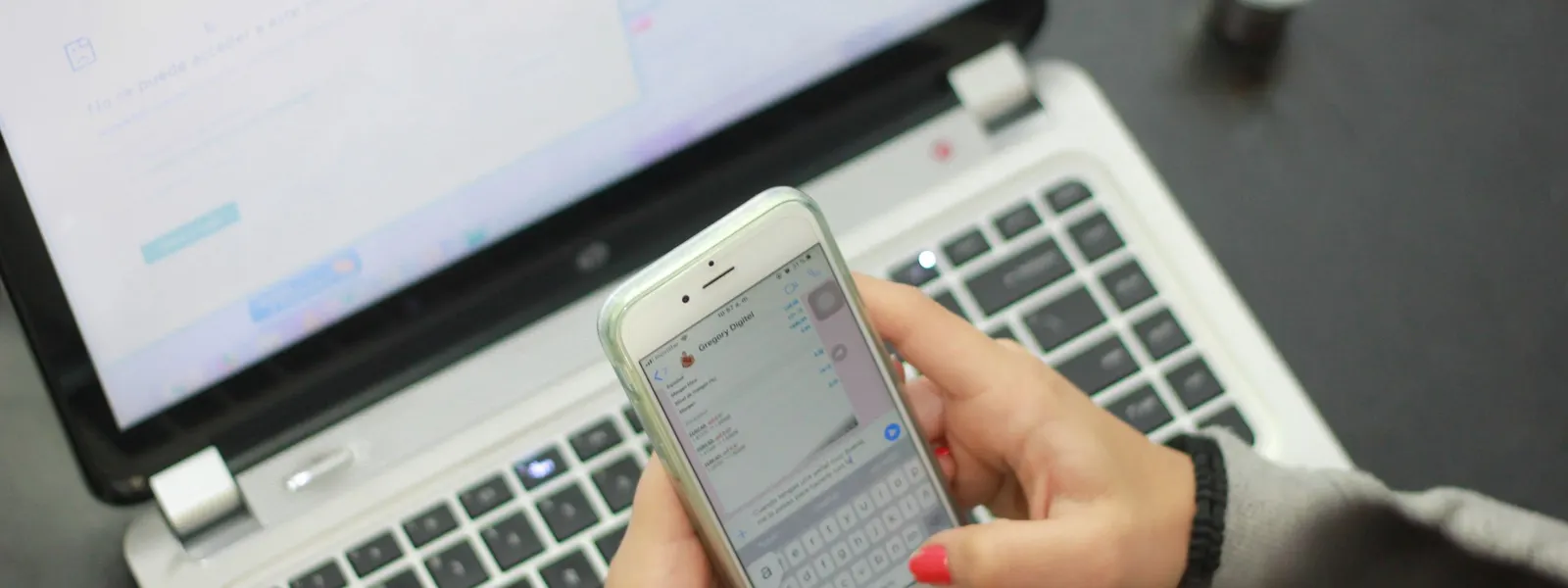
In short
To convert a screenshot to PDF, save it as a PDF through your device’s print function: Microsoft Print to PDF on a PC, Export as PDF on a Mac, Print on iPhone and Android. The catch: several screenshots rarely end up in the right order, and printing shrinks long screenshots onto one Letter page until nothing is readable.
With our free PNG to PDF converter you sort your screenshots by dragging, and each one gets a readable full-length page. Try it now with your screenshots.
Convert screenshots to PDF →The order confirmation for a return or refund, a receipt for your expense report, a chat as proof, an error message for IT support, and everyone wants a PDF? Every phone and computer can save a screenshot as a PDF without an app. With several screenshots or one long scrolling screenshot, it gets messy fast: wrong order, tiny text. Here are the methods for every device, and what helps when the result isn’t right.
Which method is right for you?
For a single screenshot, your device’s print function is enough. If you need several screenshots in one file, like a chat that spans five screens, the browser method is easier.
| Method | Several in one PDF | Change the order | Long screenshot readable |
|---|---|---|---|
| Windows: Microsoft Print to PDF | Yes | Only via file names | No, shrunk to one page |
| Mac: Preview | Yes | Yes, in the sidebar | Yes, when exporting |
| iPhone: Print trick | Yes | No | No, shrunk to one page |
| Android: print from Google Photos | No, one at a time | – | No, shrunk to one page |
| Browser with PNG to PDF | Yes | Yes, by dragging | Yes, Page: Fit image |
On a Windows PC: Microsoft Print to PDF
Screenshots taken with Windows + Shift + S or the Snipping Tool usually land in Pictures > Screenshots. From there, you make a PDF:
- Select the screenshot, or several, in File Explorer.
- Right-click and choose Print. On Windows 11, you may find it under Show more options.
- Choose Microsoft Print to PDF as the printer and the Full page photo layout.
- Uncheck Fit picture to frame, otherwise Windows cuts off the edges.
- Click Print and give the PDF a name.
The order follows the sorting in File Explorer. Screenshots are usually named by date and time, so that often fits. To order them differently, you have to rename them.
On a Mac: with Preview
Screenshots taken with Shift + Command + 3 or 4 sit on your desktop as PNG files.
- One screenshot: Double-click to open it in Preview. Choose File and Export as PDF.
- Several screenshots: Select them, open them together in Preview, drag the thumbnails in the sidebar into the right order, select them all and choose File, Print, then PDF at the bottom left and Save as PDF.
On iPhone: Full Page or the Print trick
Web page in Safari: Take a screenshot, tap the small thumbnail and choose Full Page at the top. Tap Done and then Save PDF to Files. This gets you the complete page, not just the visible part.
All other screenshots: Open them in the Photos app, tap Share and Print, then tap Share again at the top and choose Save to Files. The steps in detail are in the guide How to make a PDF on iPhone from photos.
On an Android phone: with Google Photos
- Open the screenshot in Google Photos.
- Tap the three dots and then Print.
- At the top, choose Save as PDF as the printer and tap the PDF icon.
This only works with one screenshot per PDF. On some Samsung phones, the Gallery app can put several images into one PDF, depending on the version.
How to combine screenshots into one PDF: in your browser
With a chat, an order summary or a scrolling screenshot, the built-in tools hit their limits. The print function squeezes a long screenshot onto one page, and the text becomes tiny. And putting several screenshots in the right order is only convenient on a Mac.
In the browser, it works the same on every device:
- Open PNG to PDF and choose your screenshots.
- Drag them into the right order.
- Set Page to Fit image. Each PDF page is then as large as its screenshot, even a very long one.
- Tap Create PDF and download the file.
Screenshots are PNG files. PNG to PDF embeds them without any loss, so the text stays sharp. If the file is too large for email, set Embedding to Smaller. If you have screenshots and photos mixed together, including iPhone photos in HEIC format, use Image to PDF.
Careful with chats and bank statements
Screenshots often show exactly what no stranger should see: chats, account balances, addresses, order numbers. Many online converters upload your images to their servers to do the job. Your device’s built-in tools and Filemanta work only on your device, with no server upload.
How to combine images into a PDF in general, including photos of documents, is shown in the guide How to combine multiple photos into one PDF.
Better to print straight to PDF?
A PDF made from a screenshot contains an image. You can’t select, copy or search the text in it. To save a web page, an invoice in your browser or an email, it’s better to print it straight to PDF: Ctrl + P (Mac: Command + P) and Save as PDF as the printer. A screenshot is the right choice when you want to capture exactly what was on the screen.
FAQ
How do I save a screenshot as a PDF?
Open the screenshot and choose Print. On a Windows PC, pick Microsoft Print to PDF as the printer. On iPhone and Android, save the print preview as a PDF. On a Mac, choose File and Export as PDF in Preview. You don't need an extra app.
How do I combine screenshots into one PDF?
The easiest way is in your browser with a tool like PNG to PDF: choose your screenshots, drag them into order, create the PDF. The built-in tools work too, but the order then follows the file name or the time taken, and you can hardly change it.
Why is my long screenshot so small in the PDF?
The print function fits every image onto one Letter or A4 page. A long scrolling screenshot from your phone turns into a narrow strip. In the browser tool, set Page to Fit image: the PDF page is then exactly as long as the screenshot and stays readable.
Can I save a whole web page as a PDF on iPhone?
Yes, in Safari. Take a screenshot, tap the thumbnail, choose Full Page at the top, then tap Done and Save PDF to Files. This only works in Safari, not in other apps.
Can I search the text in a screenshot PDF?
No. A PDF made from a screenshot contains an image, so you can't select or search the text. To save a web page with real text, print it straight to PDF in your browser instead of taking a screenshot.
The key points
- Every device can save a screenshot as a PDF without an app, usually through the print function.
- Putting several screenshots in a fixed order is tedious with the built-in tools.
- Long screenshots shrink to one page when printed. With Page set to Fit image they stay readable.
- Screenshots are PNG files, so text in the PDF stays sharp without any loss.
- Convert chats, bank statements and orders with no server upload.
- For web pages with searchable text, print straight to PDF in your browser instead.
Read next
What Is a HEIC File, and Why Won't It Open?
5 min read
JPG vs PNG: Which Format Should You Use When?
4 min readMatching tools
Try it now – 100% free, no server upload, right in your browser.PNG to PDF →